Tip Management: How to setup Tip Calculation Formulas
7shifts Tip Calculations allows you to create automated rules to calculate paid and owed tips. By connecting tip data from 7punches, supported POS integrations, or Tip Pooling, you can automatically include tip totals when processing payroll.
Things to know
Important: Only Admins can set up Tip Calculations.
- This feature may require an upgrade from your current plan.
- Tip Calculations require active tip data from Time Clocking or a supported POS integration.
- Tip sources (POS, Tip Pooling, 7punches) must be enabled in your account to appear as calculation options.
- Equations are location-specific; however, 7shifts defaults to your last saved configuration when setting up a new location.
- After adding or updating tips in Tip Pooling, totals automatically sync to the Tip Management overview and typically appear within 30 minutes.
-
Tip Calculations is available to POS integrations that support credit card tips. Here is a list of eligible POS systems:
The following is a list of eligible payroll Integrations or exports:
Set up your tip calculation
- Log in to the 7shifts web app as an Admin.
- In the left navigation bar, go to Tip Management > Settings.
- Select Set your tip calculation > Set up.
- If you have multiple locations, choose a location from the dropdown menu and click Add.
- Select the tip sources you want to be Paid (shown in green) and those you wish to be Deducted (shown in red).
- Click Save and preview changes to review how the calculation will appear for employees:
Formula components
The formulas you set determine how tip data surfaces in the Worked Hours and Wages Report and your integrated payroll export. You can customize equations based on these sources:
- POS: Credit card tips or other data pulled directly from your point-of-sale system.
- Tip Pooling: Calculated totals from automated or manual tip pools.
- 7punches: Declared tips entered by employees during clock-out.
Examples
Here are a few examples you can reference on how other accounts have set up their custom Tip Calculation equation.
Example 1: An account pulls tip data from Toast POS + Tip Pooling + 7punches.
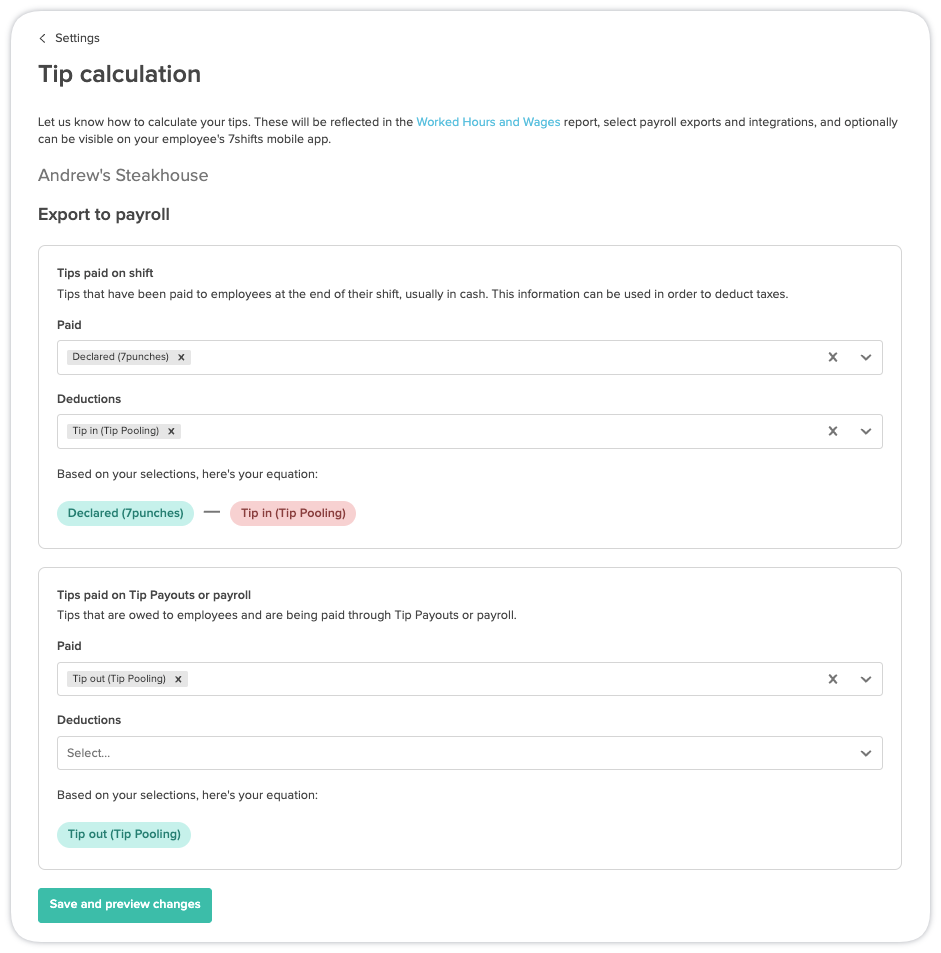
Taking a closer look, you'll set up which tip sources are to be Paid (show in green) and Deducted (shown in red). We'll show you your final equation based on your selections:
Example 2: An account pulls tip data from POS + Tip Pooling.
All tips are paid before payroll, except for pooled tips, which are paid on payroll. Contributions to a tip pool are deducted.
Example 3: Manual Tip Pooling.
Only tips from the manually contributed tip pools are paid on payroll. No other tips are paid before payroll.
Next steps
Once saved, you can view the results of these calculations in your reports. Navigate to Reports to see how the Paid and Owed totals appear for each employee before running your next payroll.