California Labor Compliance - More Tools
The following tools can help manage California labor exceptions even further, by verifying that employees are aware of missed breaks and have waived them where allowed in 7shifts.
The Automatically dismiss waived meal breaks tool can help manage California labor exceptions by dismissing waived meal breaks when the conditions below are met. For attestation setup and custom attestation questions, see Attestation Management.
Note: California accounts that already use attestation move to Attestation Management automatically, with no setup needed. Your Meal break question, historical records, and Automatically dismiss waived meal breaks setting carry over, and Rest break attestation stays off until an Admin turns it on.
Things to know
- These features are only available for those using 7punches and may require an upgrade from your current plan.
- Only Admins can access Company Settings and enable these tools.
- Shifts longer than 12 hours won't have missed meal breaks auto-dismissed.
Automatically dismiss waived meal breaks
Reduce the time needed to process payroll with automated meal break dismissals. When an employee misses a meal break and has a qualifying waiver on file, 7shifts can automatically dismiss that break on your Time Clocking page.
How it works
For auto-dismissal to apply, the punch must include an affirmative response to the Meal break attestation question, and the conditions below must be met. Rest break and custom attestation responses don't affect auto-dismissal. For attestation setup, see Attestation Management.
Meal Break 1 auto-dismissal
The system auto-dismisses a missed first meal break when:
- The employee has a Meal Break 1 waiver on file, and
- The shift is between 5 and 6 hours long.
Meal Break 2 auto-dismissal
If an employee took their first meal break but missed their second, the missed second meal break can be auto-dismissed when:
- The employee has a Meal Break 2 waiver on file, and
- The first meal break was taken (at least 30 minutes) and started within the first 5 hours of the shift, and
- The shift is between 10 and 12 hours long.
How to enable automatically dismiss waived meal breaks
Important: Attestation must be enabled before you can enable Automatically dismiss waived meal breaks. See Attestation Management for setup.
From Company Settings
- Log into the web app as an Admin.
- In the left navigation bar, select Settings > Company Settings. On the Company Settings page, select Labor & Compliance.
- Under Advanced Labor, enable Meal breaks.
- Check Automatically dismiss waived meal breaks.
- Click Save.
From an Employee Profile
- In the left navigation bar, select Team > Employees.
- Search for an employee and click their name to open their profile.
- Select Employment from the left-hand menu.
- Check the waiver(s) that apply to the employee.
- Click Save.
How to revert auto-dismissed meal breaks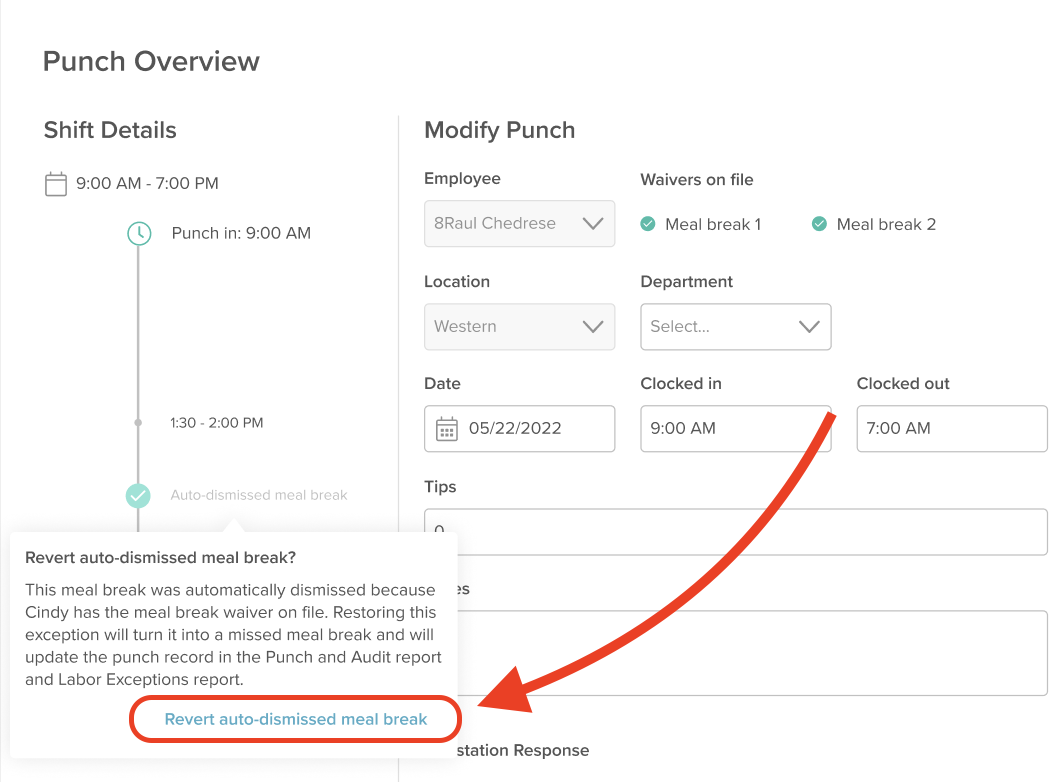
- In the left navigation bar, click Time Clocking and select a pay period. Once the pay period expands, click the pencil icon next to the punch you want to edit.
- In the Punch Overview, click Auto-dismissed meal break.
- Click Revert auto-dismissed meal break and confirm the warning:
- Click Save.
Automatically dismissed meal breaks in reports
When you're ready to review this information, go to your Punch Audit Report. Auto-dismissed meal breaks appear for each employee within the specified date range.
If a punch has been edited, the auto-dismissed meal break becomes obsolete and will be recorded in the report accordingly.
Attestation
Attestation asks employees questions when they punch out on 7punches, including whether they took their meal and rest breaks. For setup, response options, translations, and notifications, see Attestation Management. To review every response your team submitted, see Attestation Report.
For accounts in the California jurisdiction, the Labor Exceptions Report shows an attestation status for each punch. To see what triggers Break(s) Taken, Break(s) Waived, and Break(s) Prevented, see Labor Exceptions Report.